Tuesday, June 13, 2017

HFM MaxNumCubesInRAM settings...now in Workspace

MaxNumCubesInRAM

This setting controls the number of cubes that are held in memory at any given time. The number of cubes in memory is checked when either of the two conditions NumMinutesBeforeCheckingLRU or NumCubesLoadedBeforeCheckingLRU is reached. Lowering this setting can alleviate high memory usage for sparse applications (applications with many entities, but relatively few records per entity). 
This setting affects all data operations including consolidations and data retrievals.
Range: 100-500,000 - Default value: 60,000
Below is a screen shot of where you can find this setting in the new release 11.1.2.4
Navigate to Administer, Consolidation Administration, then expand Admin Tasks and then Settings. 

Thursday, May 4, 2017

Planning performance for Business Rules and Calc Scripts

Recently, we migrated some BR and Calc Scripts from an older release 11.1.1.3 to 11.1.2.4 and some of the performance settings needed to be tuned.

One of the ones i came across was the I/O Access Mode and Data Compression settings to improve performance. Check that compression settings are still present. 

In EAS, expand the application and database. Right-click on the database > Edit > Properties > Storage tab. Check that your "Data compression" is not set to "No compression" and that "Pending I/O access mode" is set to "Buffered I/O". 

Sometimes the compression setting can revert to "no compression", causing the rapid growth of the data files on disk.


Monday, April 10, 2017

Hyperion Planning and uploading user image

Hyperion Planning allows workflow for approvals.  Recently we added some users and wanted to add pictures to the users list.

Here is a tip to update the user image in Planning.

Login into Planning
Click on Preferences on the left side under Forms, Manage Task Lists etc etc.
Then navigate to Display Options tab
At the bottom of the screen you can upload the User Image from your local computer


Thursday, March 23, 2017

HSF Application growth and clean-up steps

Since Hyperion Strategic Finance (HSF) is a flat file system, many logs, archive files and deleted files can take up tons of space on the HSF Server. An HSF Administrator should implement these procedures on a monthly basis:

Below are some steps that can be taken to alleviate space issues.
  1. Delete old log files '.LOG'
  2. Delete old transaction files '.TRN'
    These are located on the HSF Server folder HSFData/Logs/_Finished directory
  3. Clean out files that are sitting in the  ADB/_Delete folder
    Once these files are removed, they can no longer be retracted (***Note to take***)
  4. Run archive repair on a regular basis to maintain a minimum number of archive files per entity. 
    This is especially important for companies with many entities and customers who create archive files often via the check in/check out process.

Smartview 11.1.2.5.620 and OBIEE plugin compatibility matrix

Recently came across this article and Smartview during our upgrade to the new release and thought of sharing it.......

Which versions of Oracle Business Intelligence Enterprise Edition (OBIEE) does Smart View support? 

Smart View 11.1.2.5.620 and Later Compatible OBIEE Server Release
Smart View Release11.1.1.9.012.2.1.0.012.2.1.1.012.2.1.2
11.1.2.5.600YesYesNo No
11.1.2.5.610YesYesYesYes
11.1.2.5.620YesYesYesYes

Monday, March 13, 2017

Essbase Server Log file location for 11.1.2.x

Recently i came across this article and thought would share it here for folks looking for log file locations for Essbase releases 11.1.2.x

Essbase Server Log Files
 v11.1.2.x\Oracle\Middleware\user_projects\epmsystem1\
diagnostics\logs\essbase (essbase_0):
  • Essbase.log
  • Essbase_ODL.log
  • SharedServices_Security_Client.log

\Oracle\Middleware\user_projects\epmsystem1\diagnostics\logs\OPMN\opmn:
  • console~Essbase1~EssbaseAgent~AGENT~1
  • EssbasePing.log
  • Opmn.log
  • Opmn.out

Planning Task List - View as Pie or Gantt Chart

We recently went to 11.1.2.4 for one of our Planning applications.  We rely on Task Lists, and one question that a user asked was.....How to manage Task Lists ?

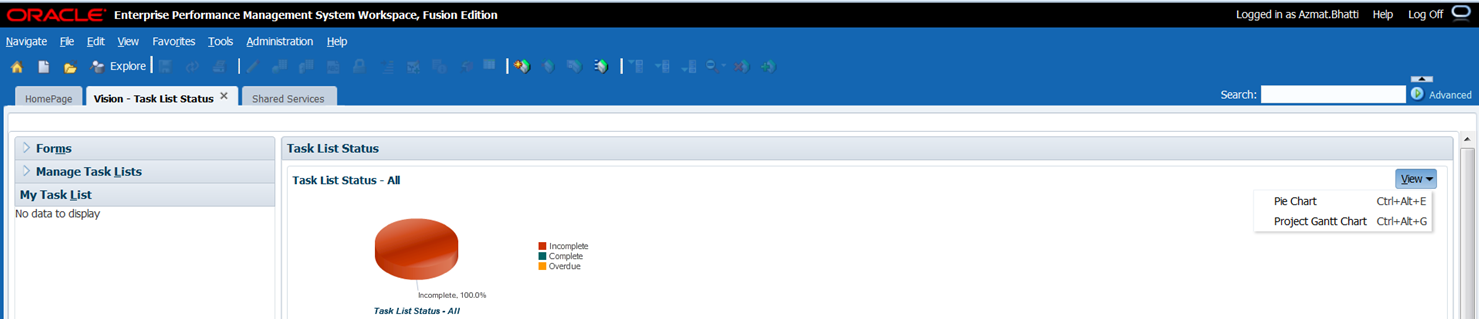
In the new release, you can open the Task List and click on the View drop down on far right side. This will change your mode from Pie Chart to Project Gantt Chart view.

See attached screen shot:


Gantt Chart View